File Display Layout
Explore different ways to arrange the file icon, content, and buttons on your page. Try the examples below to see how different layouts and styling options can change the appearance of your file display.
Card Layout
Choose how the file icon, content, and button are arranged within the card. Try the different layouts to find the one that works best for your content.
Horizontal
Divi Carousel Maker Demo Layouts
Centered
Divi Carousel Maker Demo Layouts
Media Top
Divi Carousel Maker Demo Layouts
Button Position & Icon Fill
Choose whether the button appears beside the content or underneath it. You can also adjust how the icon fills the available space within the card.
Beside - Square
Divi Carousel Maker Demo Layouts
Beside - Full Height
Divi Carousel Maker Demo Layouts
Below - Square
Below - Full-Height
Example 1 - Horizontal
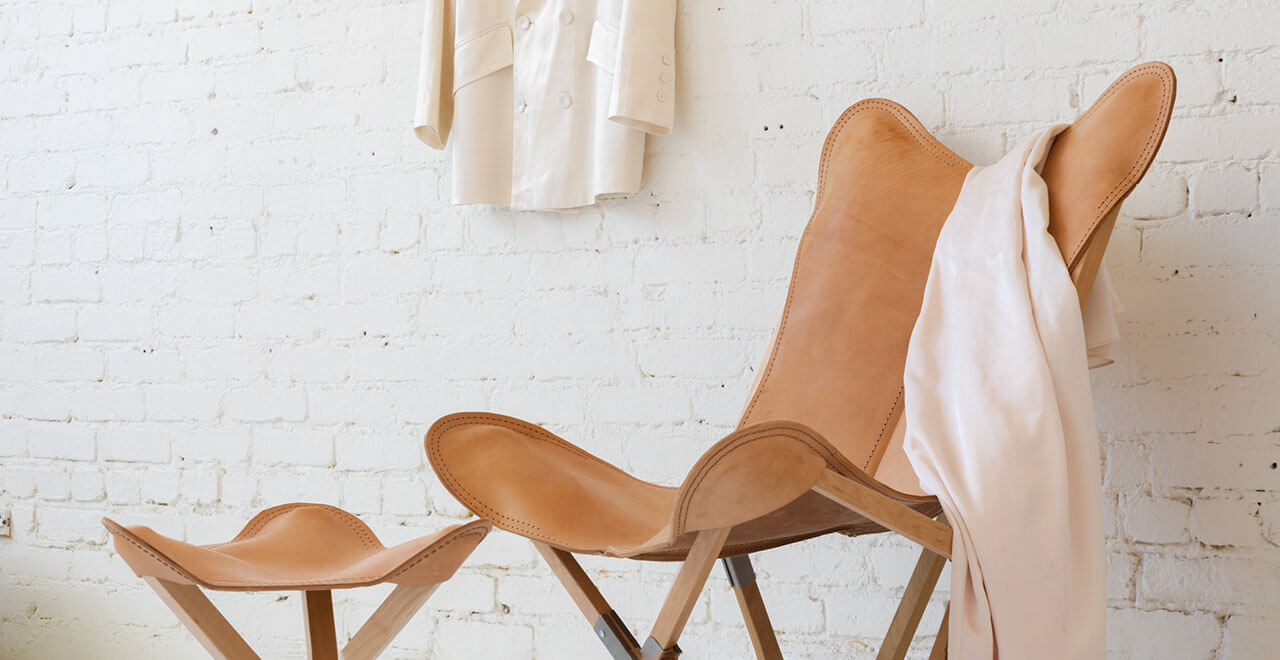
This example uses the Horizontal card layout with the button beside the content and a full-height icon. The icon width has also been adjusted, and the View button opens the file in a new browser tab.

Creative Workspace
Modern Interior

Outdoor Gathering
Example 2 - Centered
This example uses the Centered Card layout, with different file types displayed in each column. The descriptions have been removed to create a cleaner, more compact layout, along with customized card backgrounds, borders, and box shadows.
Example 3 - Media Top
This example uses an image with the image preview enabled and the Media Top card layout. The spacing before the button has been adjusted, and the short description is hidden to create a cleaner layout.

Business Partnership

Productive Work

Business Growth
Example 4 - Horizontal (Below Button)
This example uses an Auto preview with the Horizontal card layout, Below button position, and Full Height icon fill. The long description is hidden, and the Group Carousel module is used to display the files as a carousel.
Example 5 - Horizontal and Media Top Layouts
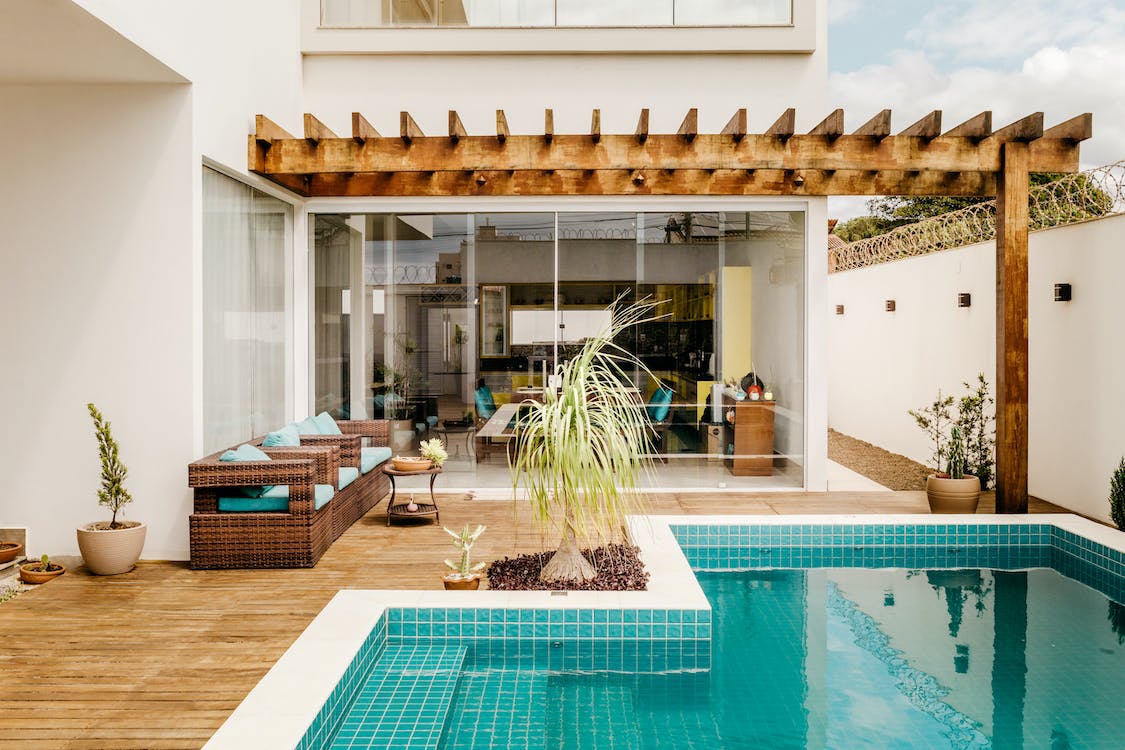
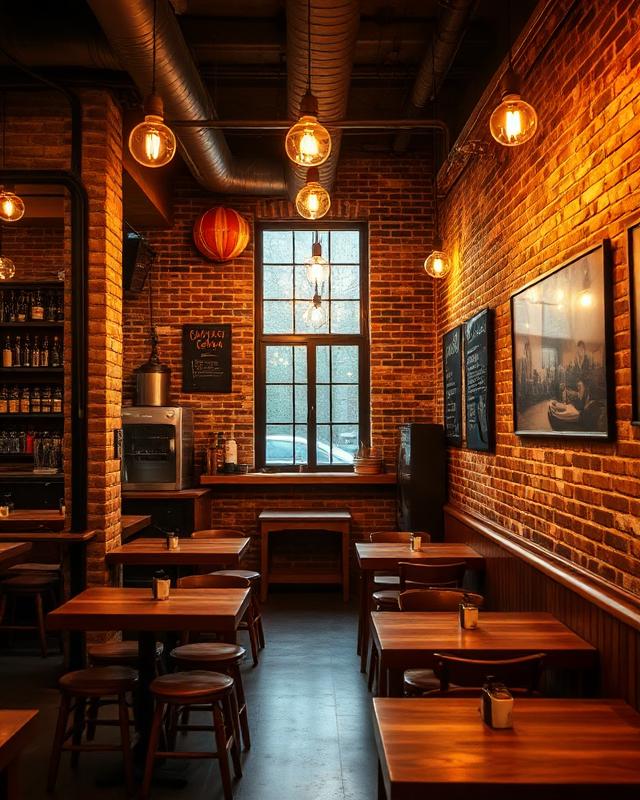
This example shows different layout options with Show Image Preview enabled. Some file displays show categories and descriptions, while others hide them. You can also adjust the Media Band Height and Gap Between Media & Content settings and customize the card, text, file preview, and other design options.
Luxury Poolside Villa
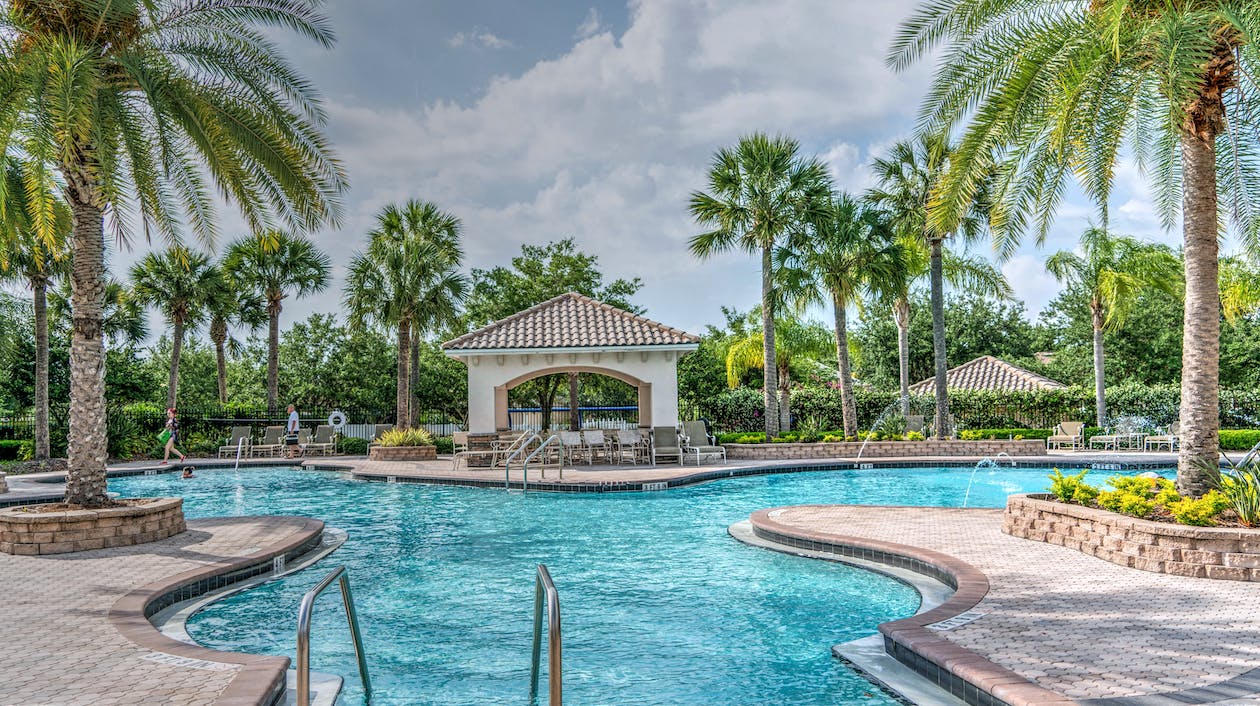
Tropical Resort Estate
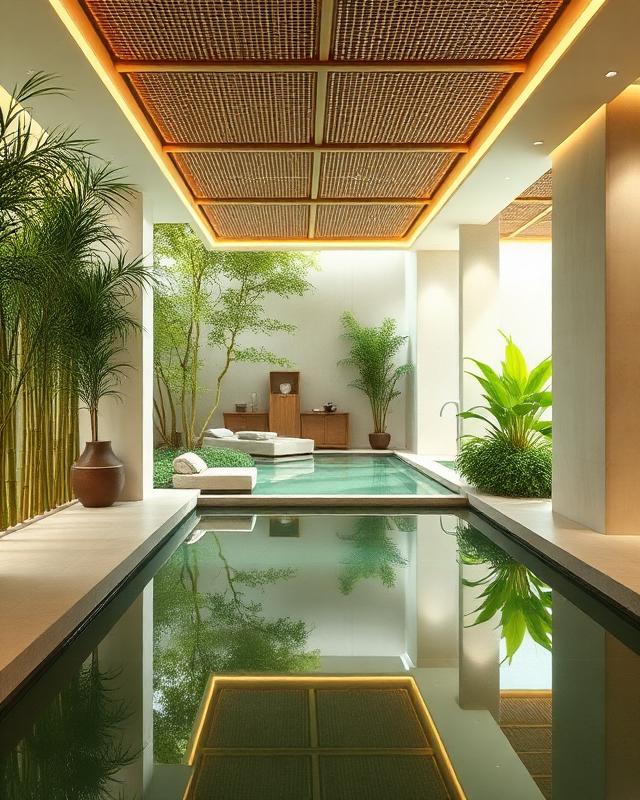


Oceanfront Holiday Estate
Example 6 - Media Top (All File Types)
This example includes different file types, with Icon and Auto preview options used across the modules. Each File Display module is customized separately, and the metadata icons are displayed vertically.