Data Source Tooltip
This page demonstrates how the Data Source Tooltip feature helps identify dynamic content by displaying the source information on hover. It allows you to quickly understand where dynamic values are coming from without affecting the frontend experience.
Important Note
The Dynamic Content Data Source Tooltip feature is only visible to logged-in administrators and does not affect what visitors see on the frontend. It provides a safe and non-intrusive way to identify the source of dynamic content. To experience this feature, you need to be logged in to the WordPress site. You can also use our admin demo sandbox link to create a temporary site and explore the functionality.
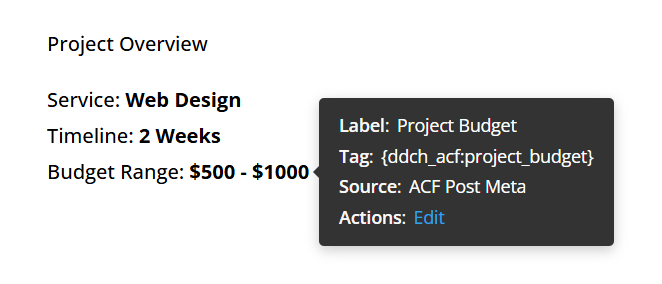
Tooltip For Inline Variables
This example demonstrates how tooltips appear for inline variables, showing the data source when hovering over dynamic values.

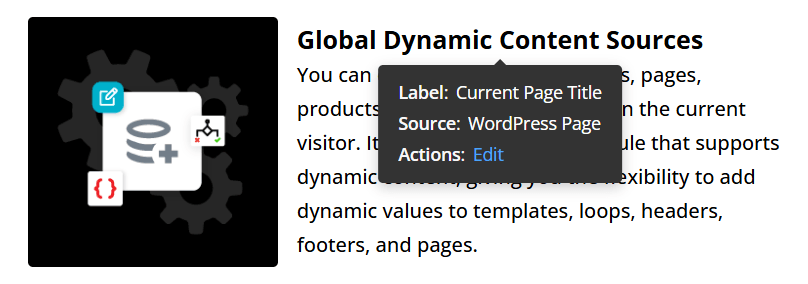
Tooltip For Global Dynamic Content Sources
This example demonstrates how tooltips display the data source for global dynamic content within module fields.

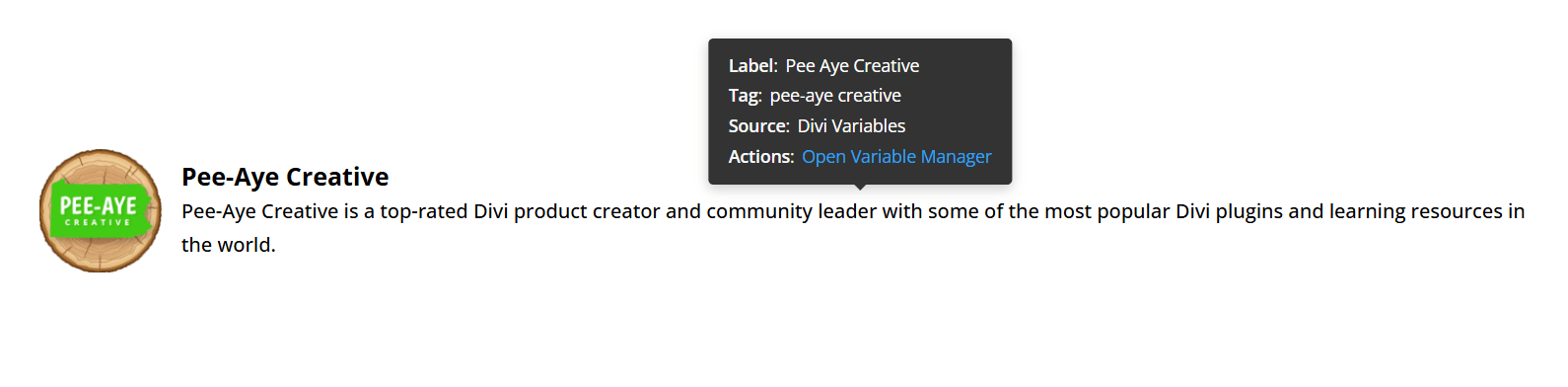
Tooltip For Divi Variables
This example demonstrates how tooltips reveal the data source for Divi variables when hovering over dynamic content.
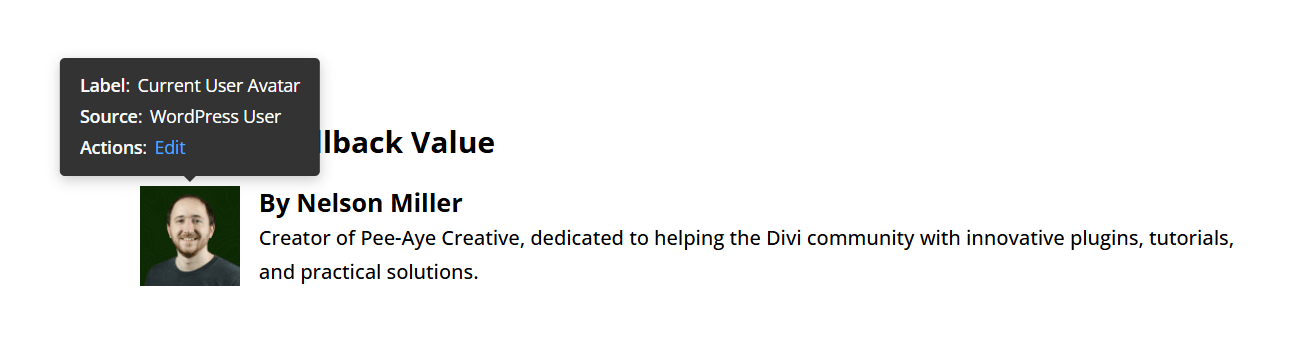
Tooltip For Divi Dynamic Content
This example demonstrates how tooltips display the data source for Divi’s default dynamic content within modules.
Tooltip Position
This example demonstrates the available tooltip positions. The example above shows the top position, while the examples below display the remaining tooltip placement options.
Bottom:
Left:
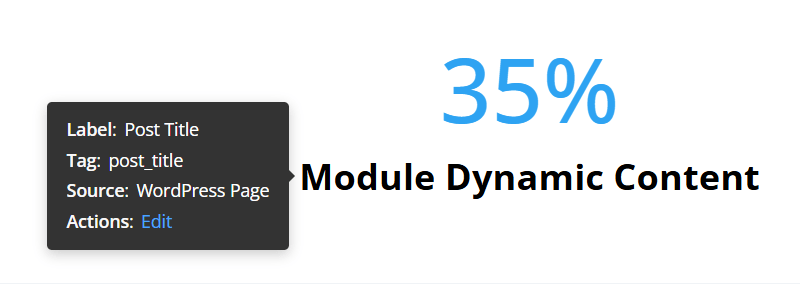
Right: