Divi Builder Experience Helper
Customize and control the Divi Builder UI/UX by showing or hiding interface elements, choosing default preferences, enabling or disabling features and options, and personalizing styles and text, all within configurable, reusable setting templates that can be assigned to any user or role, imported and exported between sites, and used to create a faster, simpler, and personalized Divi editing environment.
How To Use The Plugin
Please refer to our plugin documentation for detailed guides, setting lists, and FAQs.
Demos
This page demonstrates how Divi Builder Experience Helper enhances the Divi editing experience with additional controls and workflow improvements.
Important Note
This feature works only inside the Divi Visual Builder. It does not affect or change the frontend layout of your website.
Since this plugin works on the admin side, you need to be logged in to the WordPress site to experience its features. Please use our admin demo sandbox link to create a temporary site and explore the features.
Top Bar – Page Menu Controls
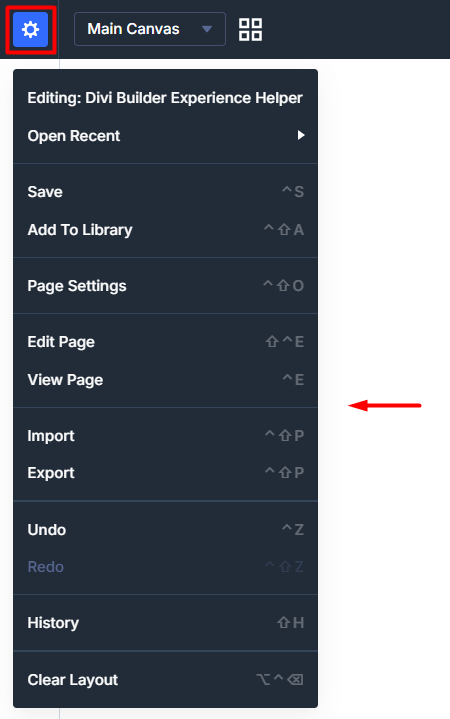
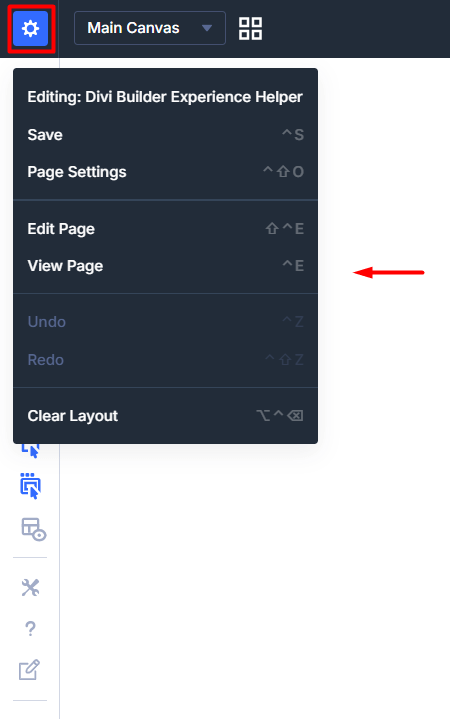
This example demonstrates how you can control the Divi Builder Page Menu in the top bar.
In this demo:
- The default Page Menu icon is shown.
- The Page Menu icon is completely hidden.
- Specific options inside the Page Menu dropdown such as Open Recent, Add to Library, Import & Export, and History are selectively hidden.
These settings help simplify the builder interface and remove unnecessary options for certain users.
Default Page Menu Icon
Page Menu Icon Hidden

Dropdown Options Hidden
Top Bar – Responsive Controls
This example hides the Responsive Breakpoint Settings menu and specific device switcher icons such as Tablet, Tablet Wide, Phone, and Phone Wide. It also hides the Preview Size input field and the Zoom Level input field to simplify the builder interface.
Before:

After:

Top Bar – Exit Button Controls
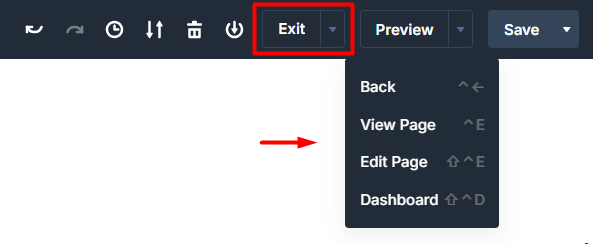
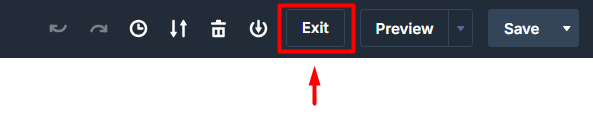
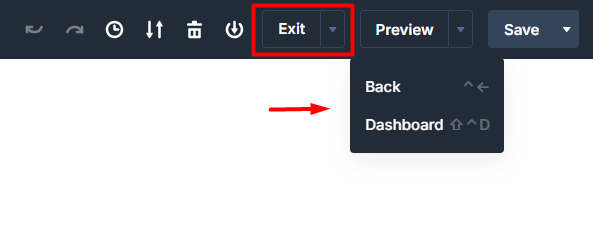
This example demonstrates how you can customize the Exit button in the Divi Builder top bar. In this demo:
- The default Exit button and dropdown menu are shown.
- The Exit dropdown menu is completely hidden.
- Specific dropdown options such as "View Page" and "Edit Page" are selectively removed.
These settings help simplify the builder interface and control where users can navigate from the builder.
Default Exit Button
Exit Dropdown Menu Hidden
Selected Exit Menu Options Hidden
Top Bar – Preview Button Controls
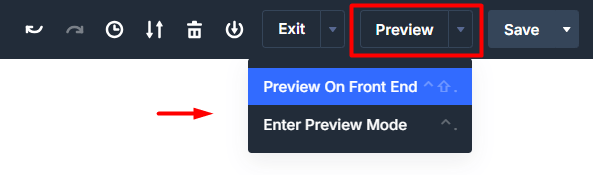
This example demonstrates how you can control the Preview button in the Divi Builder top bar.
In this demo:
- The default Preview button and dropdown menu are shown.
- The Preview button is hidden.
- The Preview dropdown menu is hidden while keeping the button visible.
These settings allow you to simplify the builder interface and control how users access preview options.
Default Preview Button
Preview Button Hidden

Preview Dropdown Menu Hidden

Top Bar – Save Button Controls
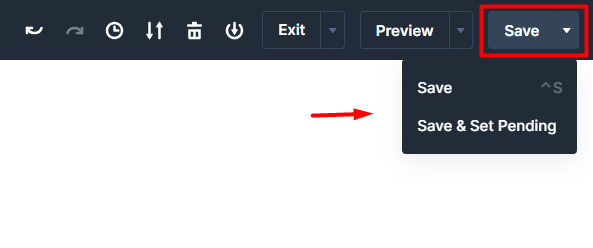
This example demonstrates how you can control the Save button options in the Divi Builder top bar.
In this demo:
- The default Save button and dropdown menu are shown.
- The Save button dropdown menu is completely hidden.
- Specific dropdown options such as “Save & Set to Draft” and “Save & Set Private” are selectively removed.
These settings help limit publishing options and simplify the builder interface for certain users or workflows.
Default Preview Button

Preview Button Hidden

Preview Dropdown Menu Hidden
Top Bar – Button Text Customization
This example demonstrates how you can customize the button text in the Divi Builder top bar.
In this demo:
- The default button text for Exit, Preview, and Save is shown.
- The button text is customized to use alternative labels.
This feature allows you to adjust the builder interface wording to better match your workflow, client language, or branding preferences.
Default Button Text

Customized Button Text

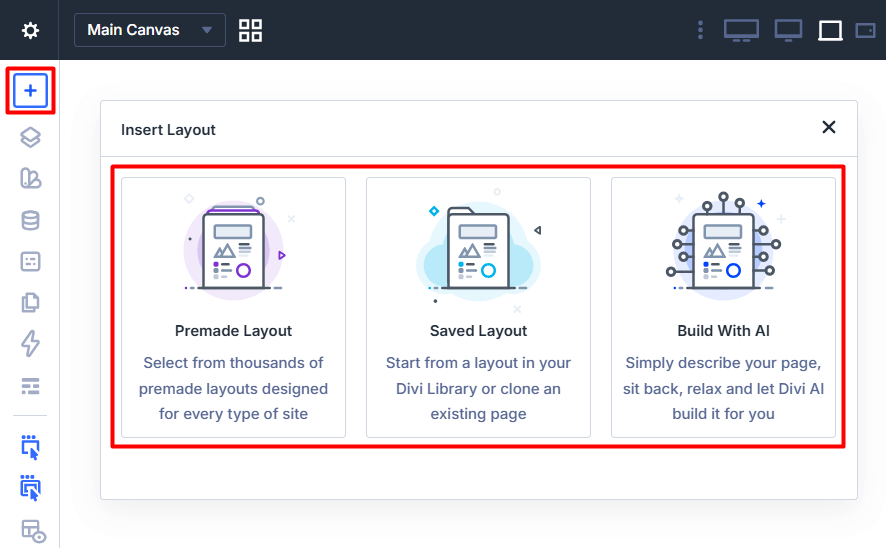
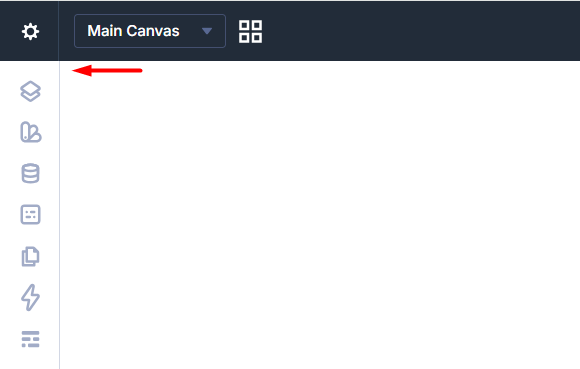
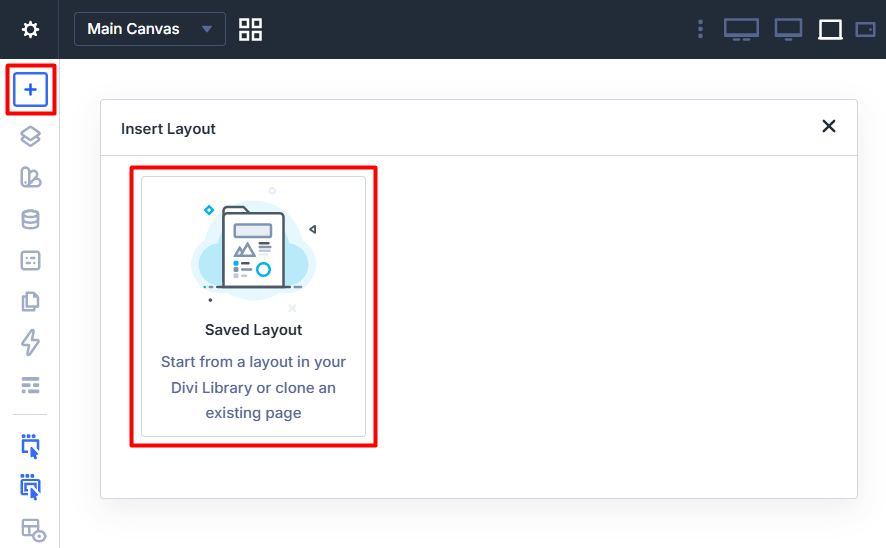
Left Sidebar – Add Layout Controls
This example demonstrates how you can control the Add Layout icon in the Divi Builder left sidebar.
In this demo:
- The default Add Layout icon and options are shown.
- The Add Layout icon is completely hidden.
- Specific layout options such as “Premade Layout” and “Build With AI” are selectively removed.
These settings allow you to simplify the builder interface and restrict layout creation options when needed.
Default Add Layout Icon
Add Layout Icon Hidden
Selected Layout Options Hidden
Left Sidebar – Interface Controls
This example demonstrates how you can control the visibility of interface tools in the Divi Builder left sidebar.
In this demo:
- The default sidebar icons are shown.
- Core tools such as Layers, Inspector, and Variable Manager are hidden.
- Additional controls such as Wireframe View, Divi Builder Helper, and the Dark/Light Mode icon are removed.
These settings allow you to simplify the builder interface and reduce distractions for specific users or roles.
Default Left Sidebar Icons

Core Interface Tools Hidden
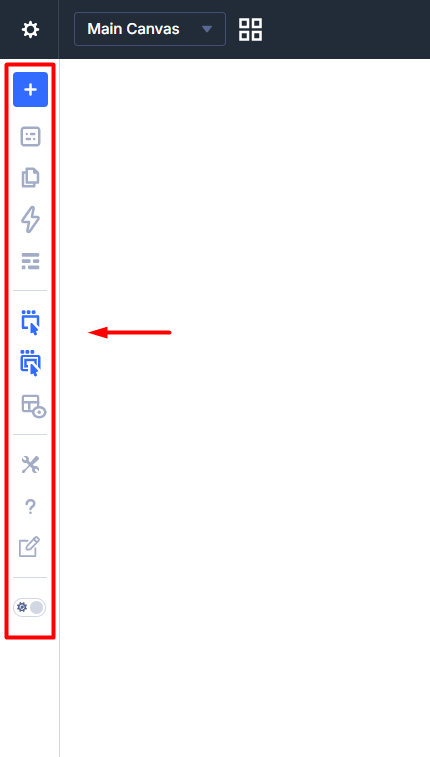
Additional Interface Controls Hidden
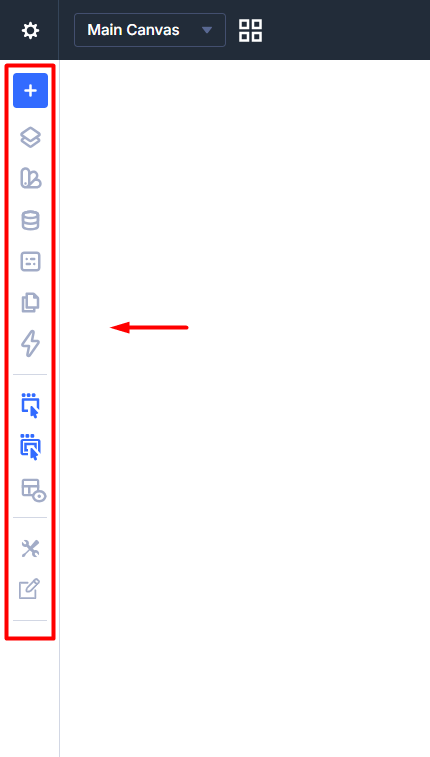
Left Sidebar – Preset Manager Controls
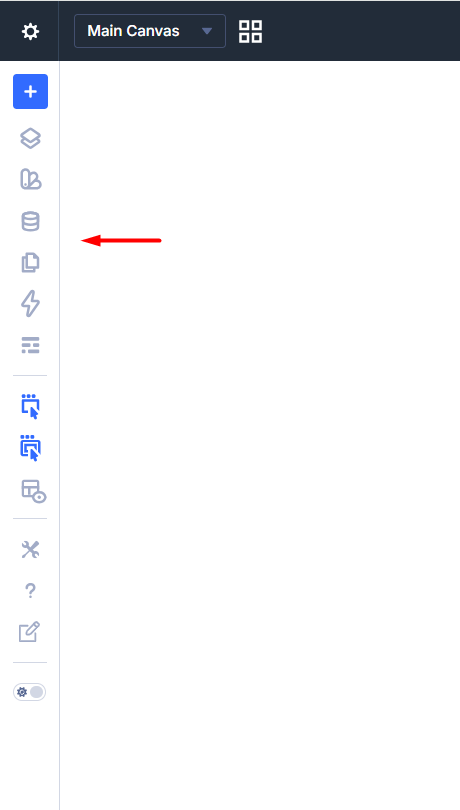
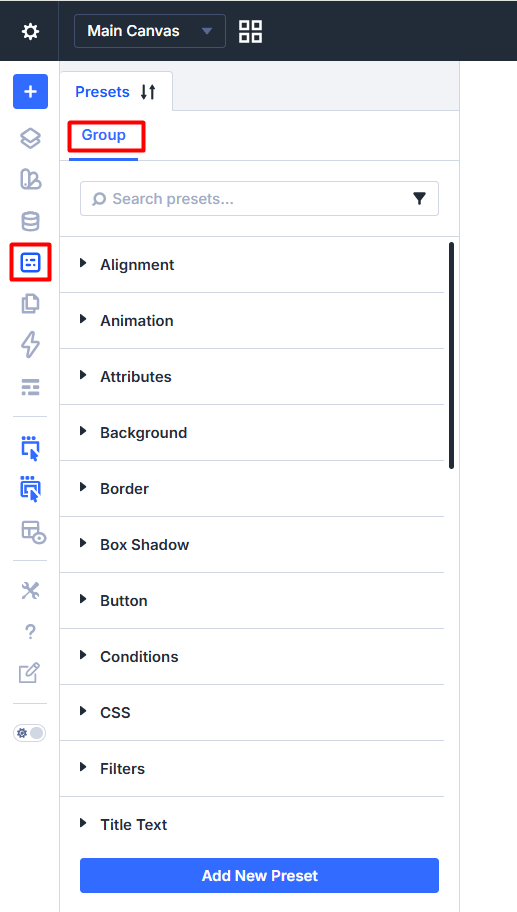
This example demonstrates how you can control the Preset Manager in the Divi Builder left sidebar.
In this demo:
- The default Preset Manager icon and tabs are shown.
- The Preset Manager icon is completely hidden.
- The Element tab is removed while keeping the Group tab visible.
These settings allow you to limit preset management options and simplify the builder interface when needed.
Default Preset Manager

Preset Manager Hidden
Element Tab Hidden
Left Sidebar – Page Manager Controls
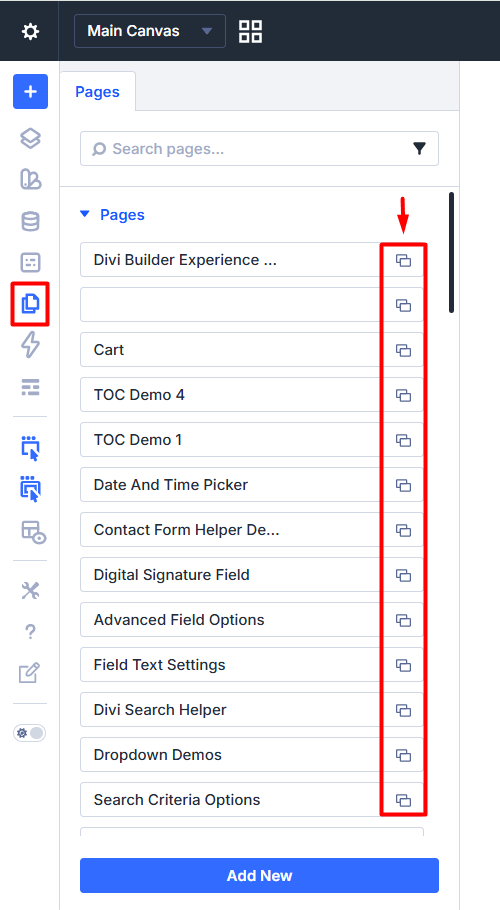
This example demonstrates how you can control the Page Manager in the Divi Builder left sidebar.
In this demo:
- The default Page Manager icon and panel options are shown.
- The Page Manager icon is completely hidden.
- Specific actions such as "Edit Page" and "Delete Page" icon are removed from the Page Manager panel while keeping the panel accessible.
These settings help restrict page management actions and simplify the builder interface for certain users.
Default Page Manager

Page Manager Icon Hidden

Selected Page Manager Actions Hidden
Left Sidebar – Action Icons & X-Ray Mode Controls
This example demonstrates how you can control the visibility of Action Icons, Parent Action Icons on hover, and X-Ray Mode in the Divi Builder.
In this demo:
- The default Action Icons, Parent Action Icons (on hover), and X-Ray Mode icon are shown.
- All of these interface elements are hidden to create a cleaner editing experience.
These settings help reduce visual clutter in the builder and provide a simplified interface for users.
Default Action & X-Ray Controls

Action & X-Ray Controls Hidden

Left Sidebar – Appearance Customization
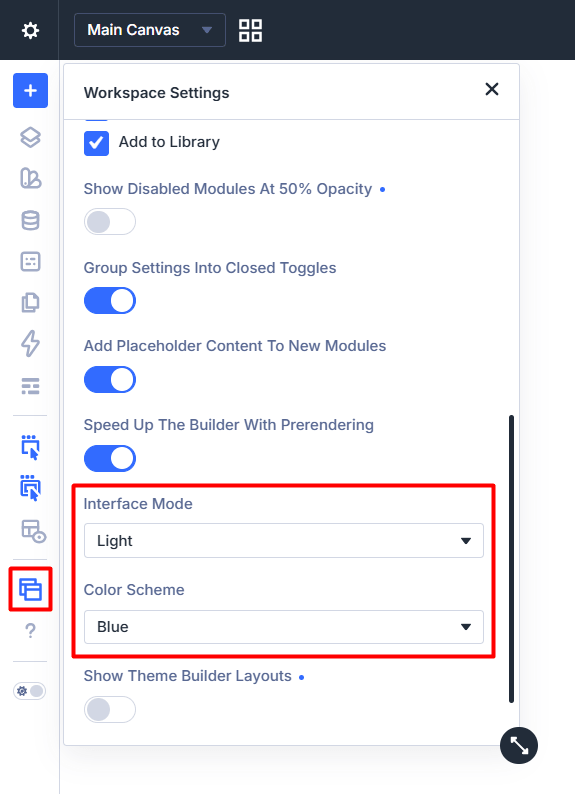
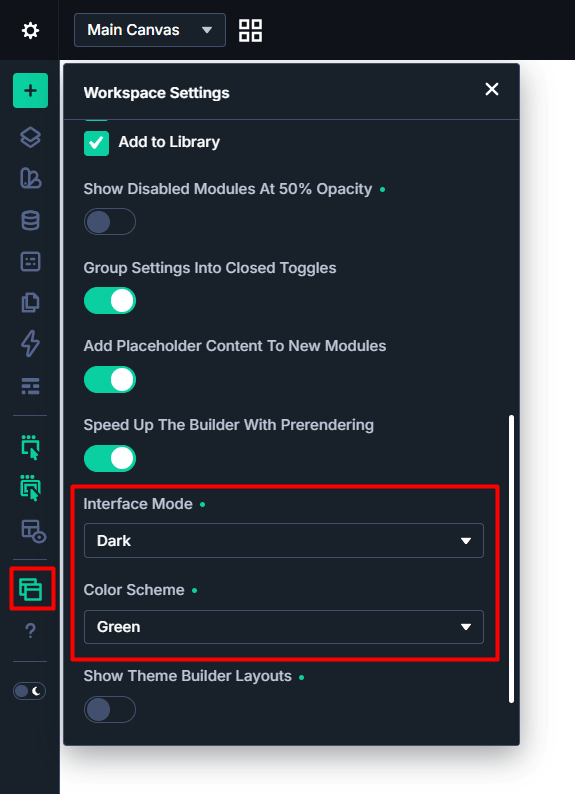
This example demonstrates how you can customize the appearance of the Divi Builder interface.
Default Interface Mode and Color Scheme
Customized Interface Mode and Color Scheme
Module Management – Rename Divi Modules
This example demonstrates how you can rename default Divi modules throughout the Divi Builder.
In this demo:
- Group is renamed to "Pee-Aye Group"
- Accordion is renamed to "Pee-Aye Accordion"
- Audio is renamed to "Pee-Aye Audio"
- Blurb is renamed to "Pee-Aye Blurb"
- Button is renamed to "Pee-Aye Button"
This feature is helpful for branding, organizing custom workflows, or distinguishing modified modules from the defaults.
Before:
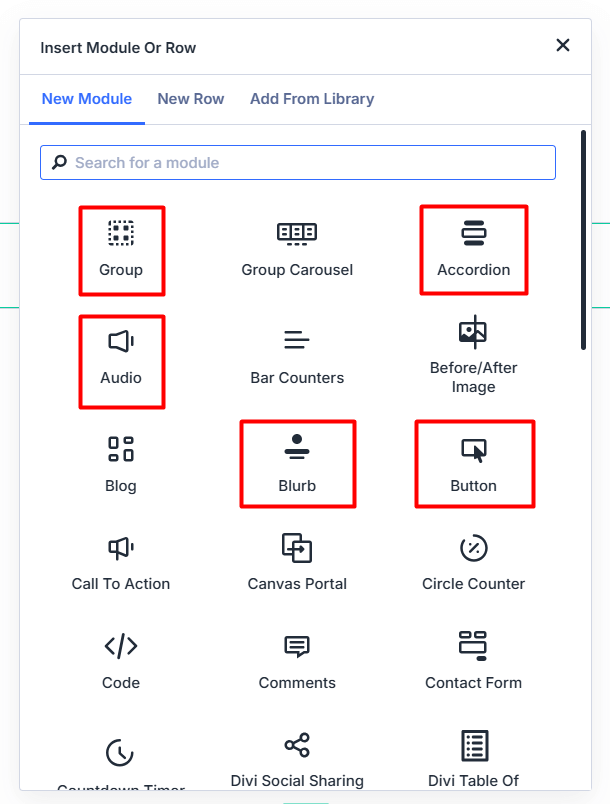
After:

Module Management – Pinned Modules (In Insert Menu)
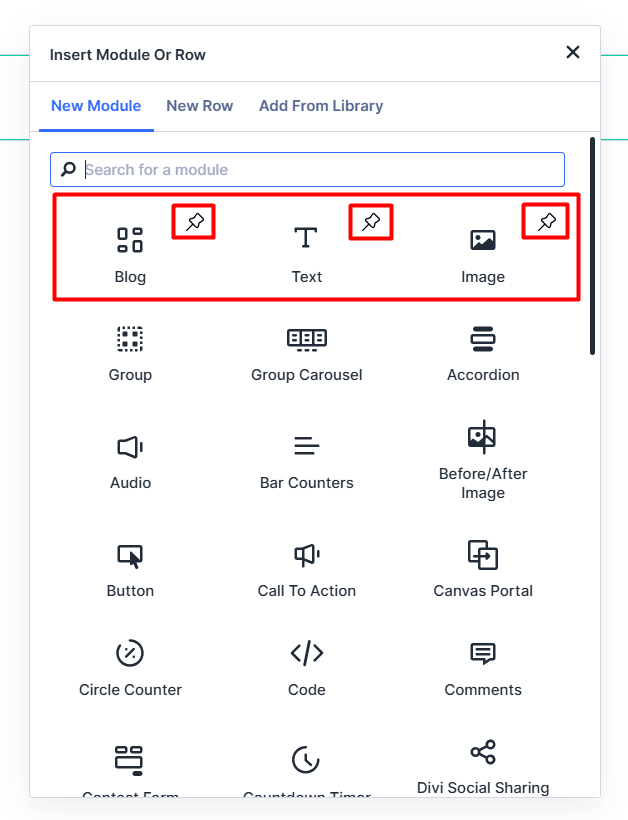
This example demonstrates how you can pin specific modules to the top of the Add New Module popup for quicker access. Pinned modules always appear above other modules, even when module reordering is enabled.
In this demo, the Blog, Text, and Image modules are pinned and displayed at the top of the list.
Before:

After:
Module Management – Reorder Divi Modules
This example demonstrates how you can reorder Divi modules inside the Add New Module popup.
In this demo:
- The default module order is shown.
- Modules are rearranged to prioritize frequently used modules at the top of the list.
This feature helps improve workflow efficiency by allowing you to organize modules based on your usage habits.
Before:
After:
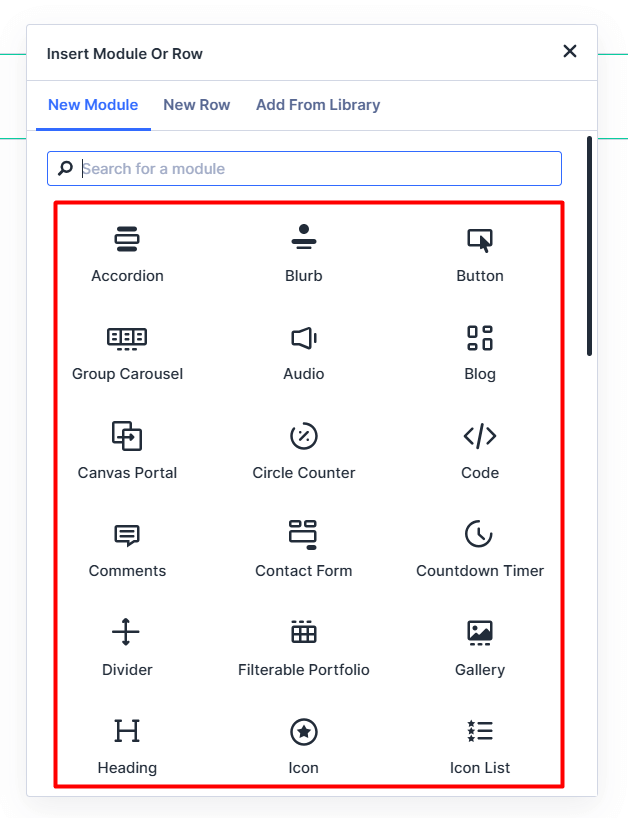
Module Management – Hide Specific Divi Modules
This example demonstrates how you can hide specific Divi modules from the Add New Module popup.
This allows you to control which modules are available to users assigned to this template.
In this demo, the following modules are hidden:
- Group
- Accordion
- Audio
- Blurb
- Button
In the second screenshot, these modules no longer appear in the Add New Module list.
Before:

After:

Element Actions – Section Controls
This example demonstrates how you can control the action icons for Sections inside the Divi Builder. These settings allow you to restrict editing controls and simplify the builder interface for specific users.
Note: The same action control settings are also available for Rows and Modules.
Default Divi Section Settings
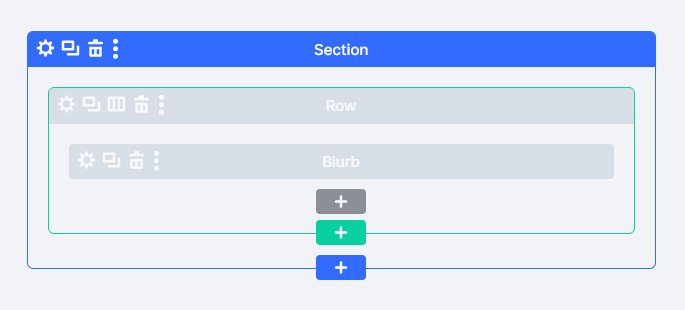
Hide Add New Section & Settings Gear Icon
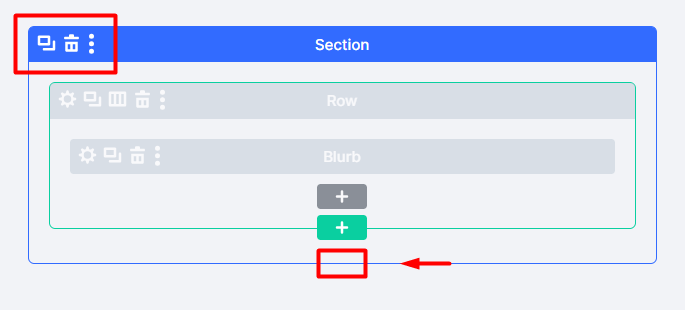
Hide Trash Icon & Section More Options Menu

Element Actions – Insert Section Controls
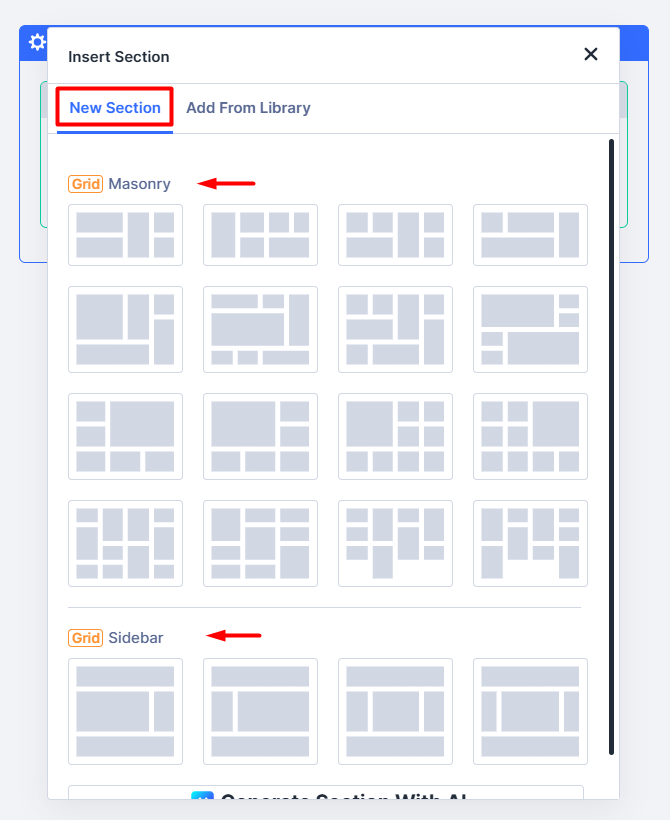
This example demonstrates how you can control the options available when inserting a new Section in the Divi Builder.
In this demo:
- The default Insert Section panel is shown.
- The "Add From Library" tab is hidden.
- Specific layout options inside the New Section tab such as Equal Columns, Offset Columns, and Multi-Row options are removed.
These settings allow you to simplify the section insertion interface and restrict layout options when needed.
Note: The same Insert Control Settings are also available for Rows.
Default Insert Section Panel
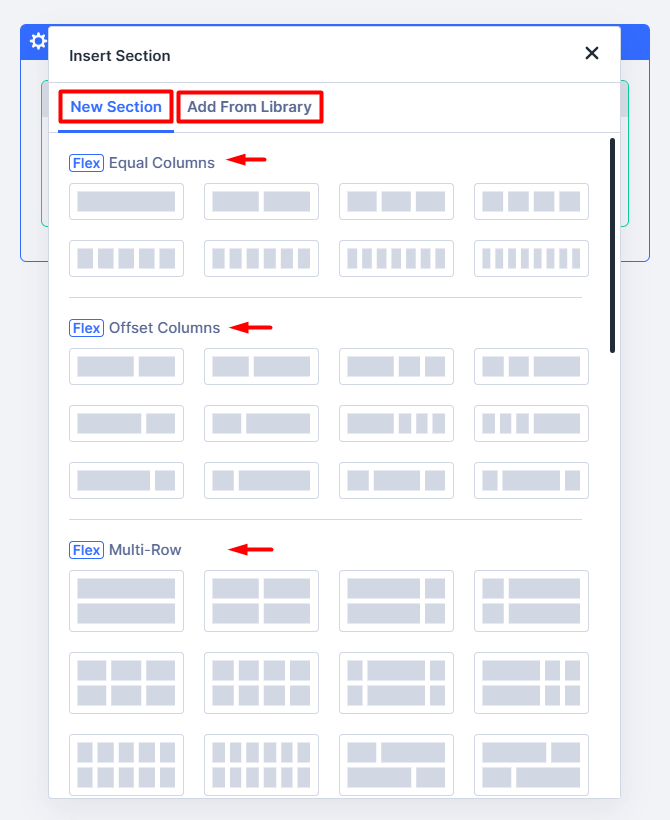
Add From Library Tab Hidden

Specific Layout Options Hidden
Element Actions – Section More Options Menu Controls
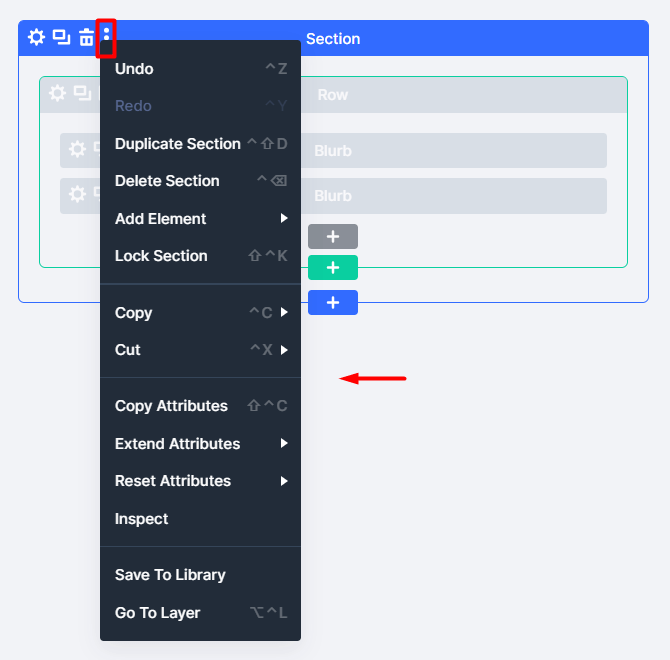
This example demonstrates how you can control the options available in the Section More Options menu.
In this demo:
- The default Section More Options menu is shown.
- Specific options such as Undo, Duplicate, Delete, Add Element, Save to Divi Cloud, and Go To Layer are removed.
These settings allow you to limit advanced actions and simplify the builder interface for specific users or workflows.
Note: The same More Options Menu Settings are also available for Rows and Modules.
Default Section More Options Menu
Specific Options Hidden

Element Actions – Insert Module Controls
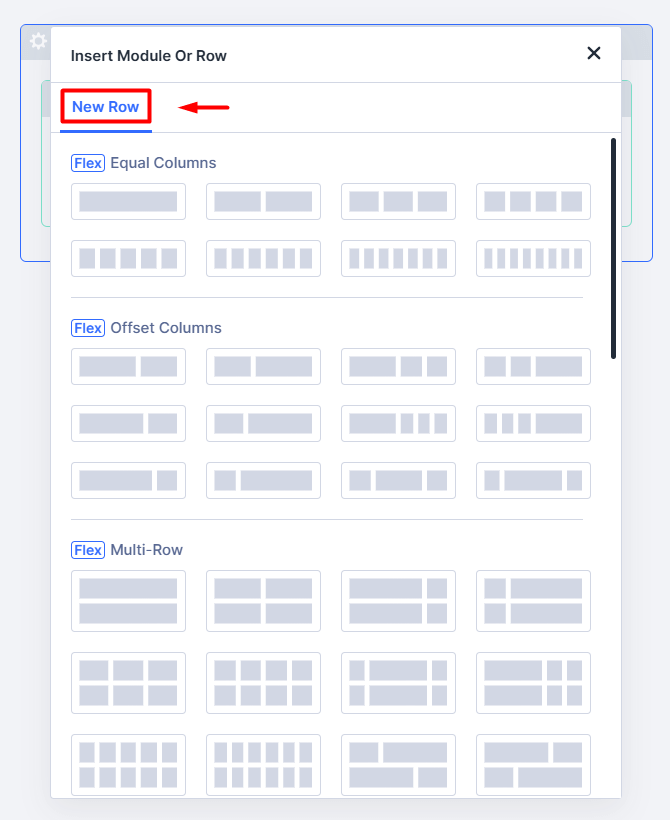
This example demonstrates how you can control the options available when inserting a new Module in the Divi Builder.
Default Insert Module Modal
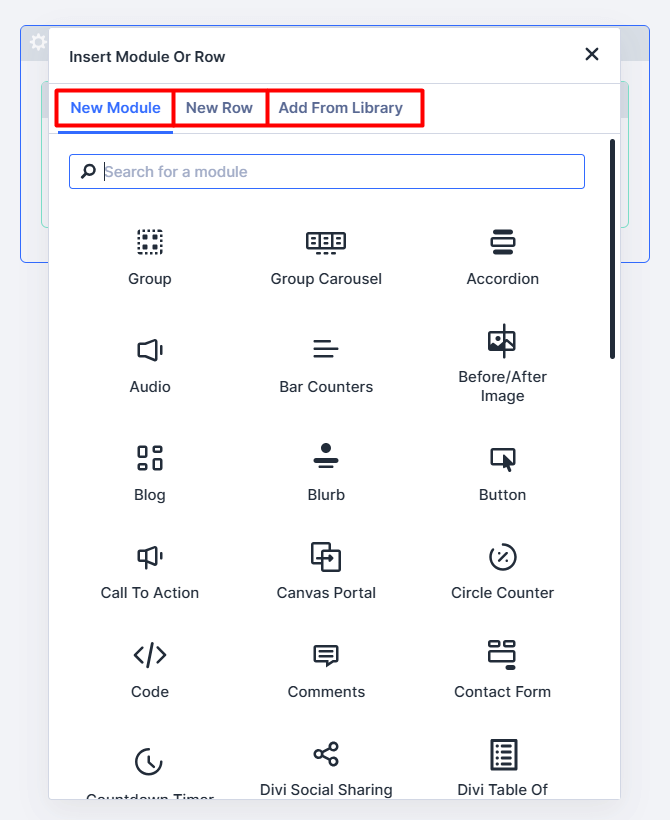
Hide "New Module" and "Add From Library" Tab
Element Panel Settings – Interface Controls
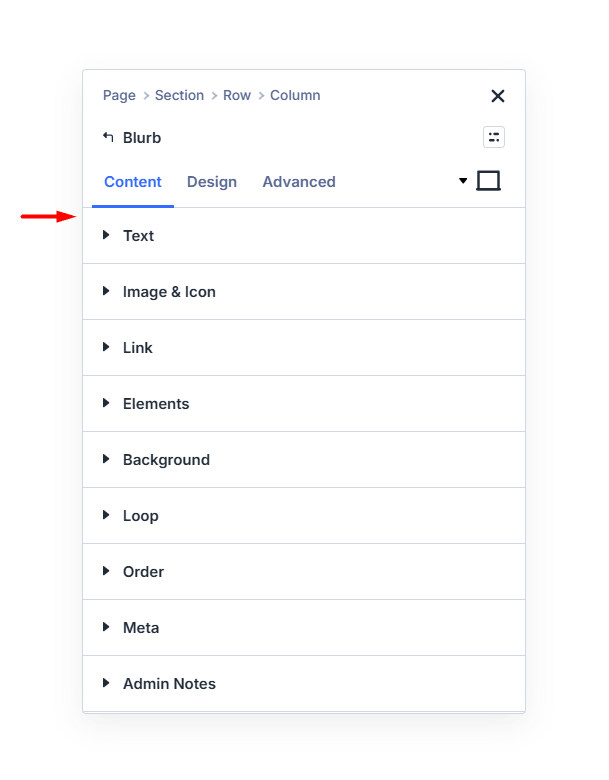
This example demonstrates how you can control interface elements inside the Section, Row, and Module settings panel.
In this demo:
- The default settings panel is shown.
- The Breadcrumbs navigation are hidden.
- The Settings Search Bar and Filter are removed.
These settings help reduce distractions and simplify the editing interface within individual element settings.
Default Element Settings Panel
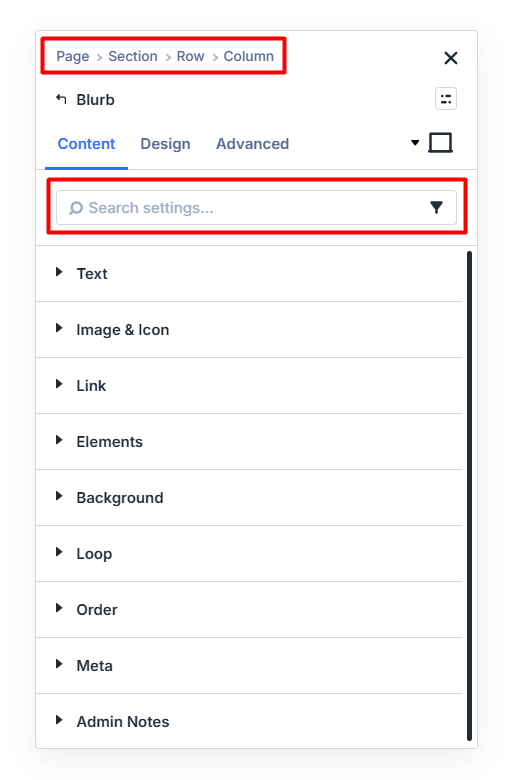
Hide Breadcrumbs
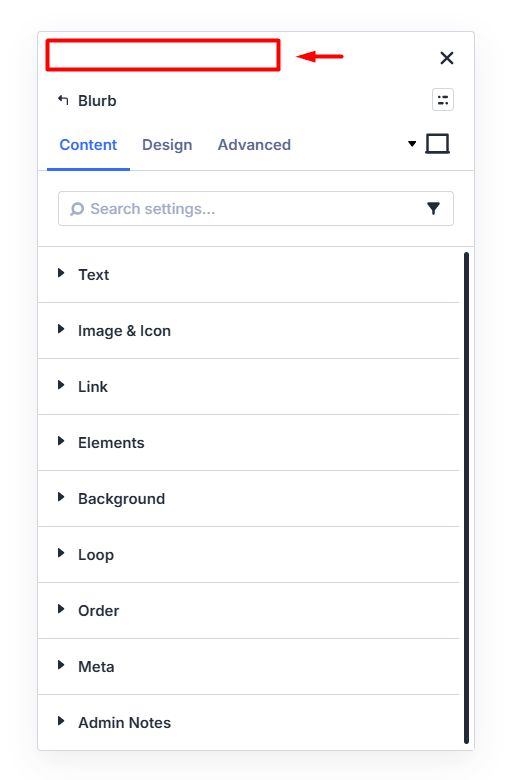
Hide Search Bar & Filter
Element Panel Settings – Element Preset Controls
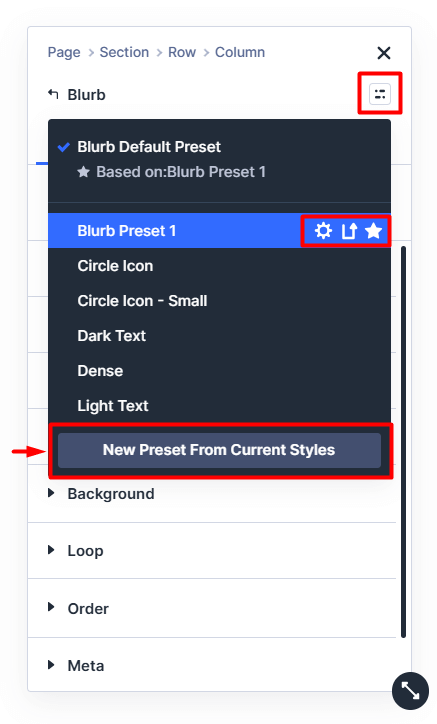
This example demonstrates how you can control the Element Presets interface inside the Divi Builder settings panel.
In this demo:
- The default Element Presets interface is shown.
- The entire Element Presets interface is hidden.
- Specific preset controls such as the "Duplicate" and "Delete" Preset icons are removed.
- The "Add New Preset button" is also hidden.
These settings allow you to restrict preset management and simplify the settings panel for specific users.
Default Element Presets Interface

Element Presets Interface Hidden

Specific Preset Controls Hidden
Element Panel Settings – Settings Filter Controls
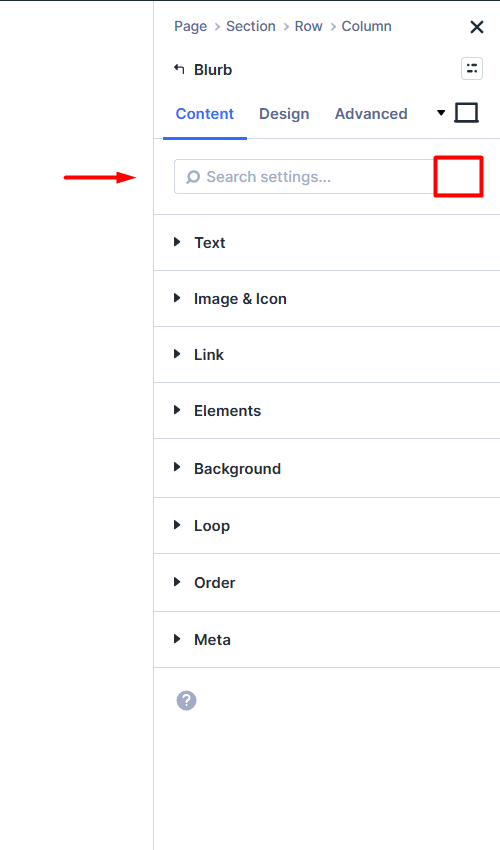
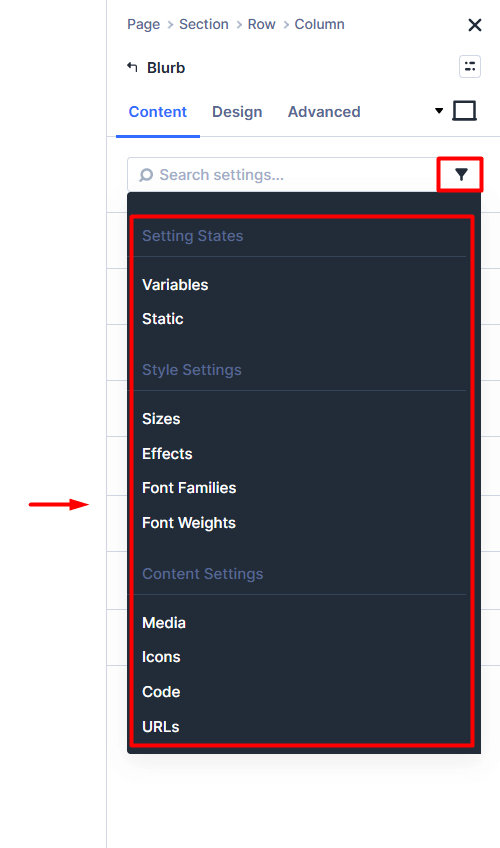
This example demonstrates how you can control the Settings Filter inside the Section, Row, and Module settings panels.
In this demo:
- The default Settings Filter icon and menu inside the Search Bar are shown.
- The Settings Filter icon and menu are completely hidden.
- The Filter menu is displayed, but specific filter options such as Filter Menu Search Bar, Modified, Colors, and Text are removed.
These settings allow you to simplify the settings panel and limit filtering options for specific users.
Default Settings Filter
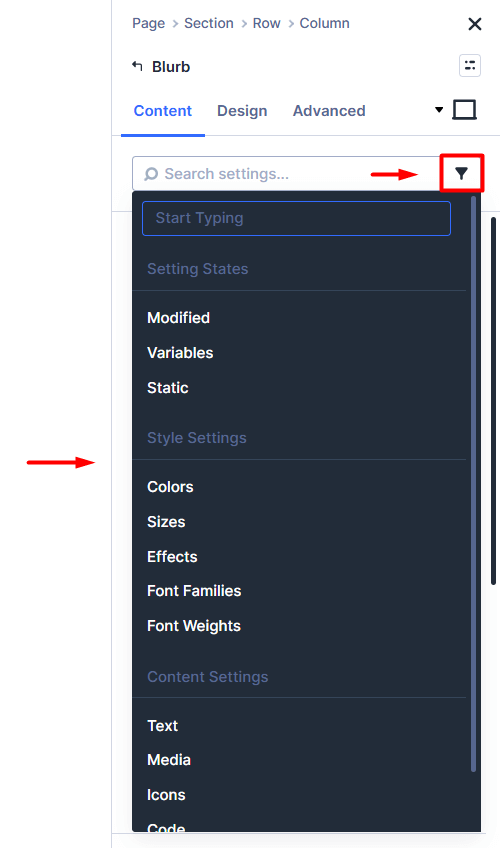
Settings Filter Hidden
Specific Filter Options Hidden
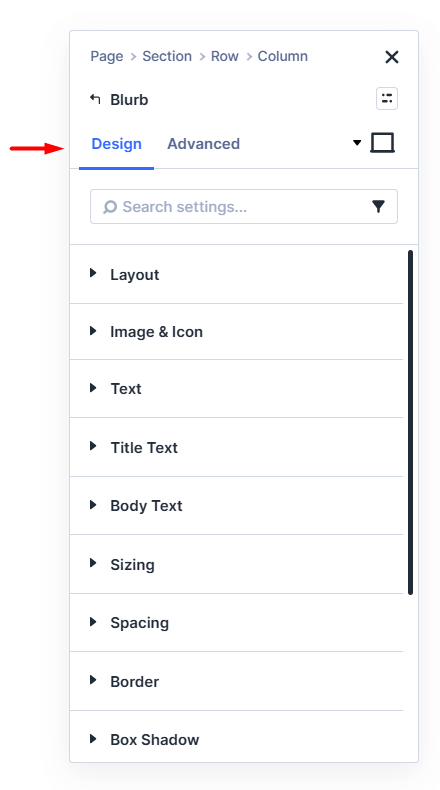
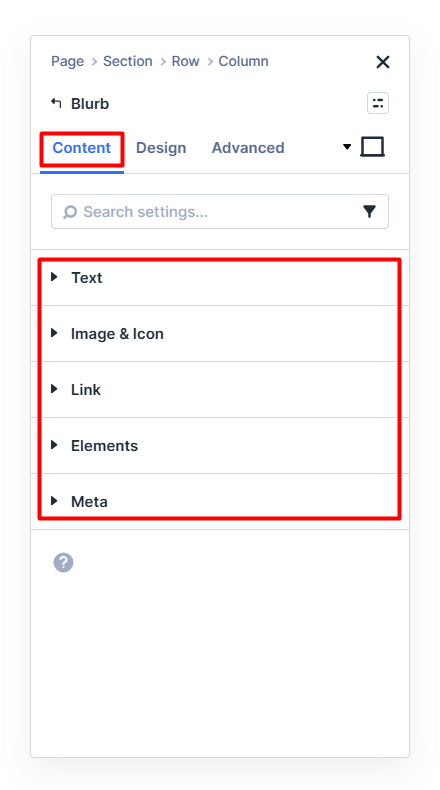
Element Panel Settings – Content Tab Controls
This example demonstrates how you can control the Content tab inside the Divi Builder settings panel.
In this demo:
- The default Content tab is shown for Sections, Rows, Columns, and Modules.
- The entire Content tab is hidden.
- The Content tab is displayed, but specific options such as Order, Loop, and Background are removed.
These settings allow you to restrict editing capabilities and simplify the settings panel for specific users or templates.
Note: The tab visibility settings are not limited to the Content tab. The same options are available for the "Design" and "Advanced" tabs across Sections, Rows, Columns, and Modules.
Default Content Tab
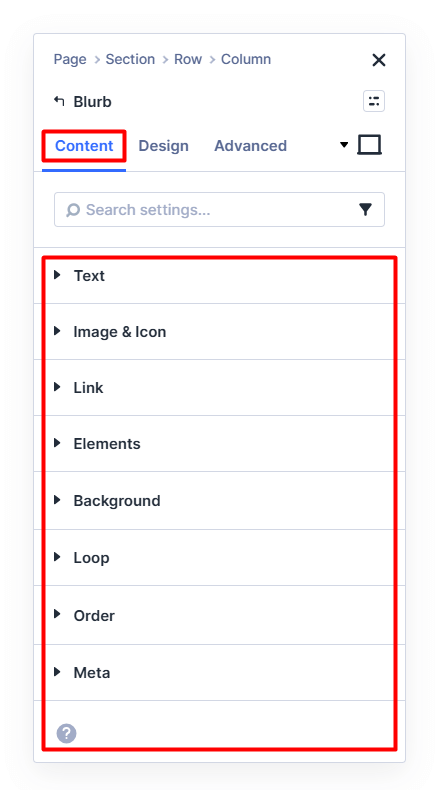
Content Tab Hidden
Specific Content Options Hidden
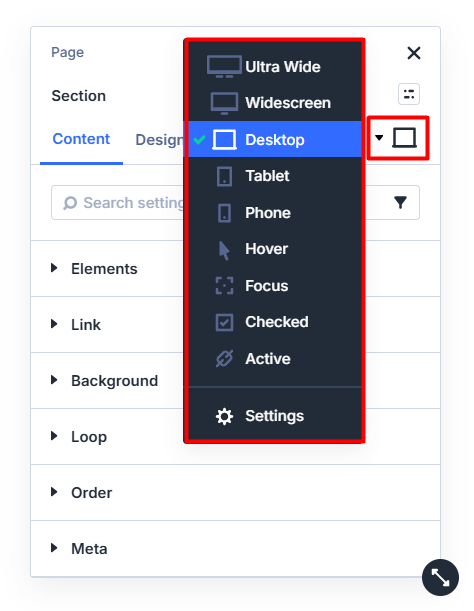
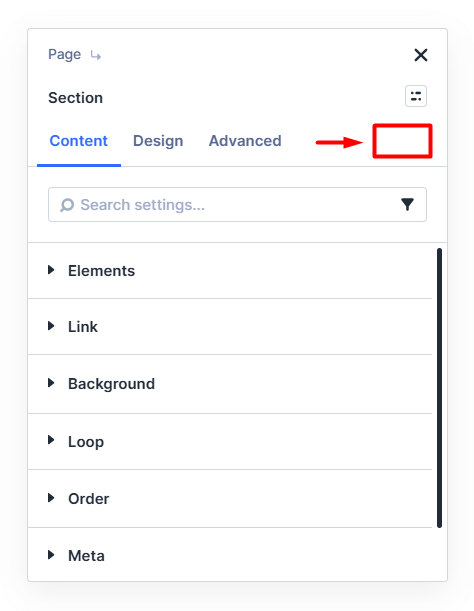
Element Panel Settings – Responsive, Hover, Focus, Checked and Active Switcher Controls
This example demonstrates how you can control the Responsive, Hover, Focus, Checked and Active switcher dropdown inside the element settings panel.In this demo:
- The default Responsive, Hover, Focus, Checked and Active switcher dropdown is shown.
- The entire dropdown menu is hidden.
- The dropdown is displayed, but the breakpoint options are removed.
These settings allow you to simplify the editing interface and restrict responsive or state editing when needed.
Default Responsive & Hover Switcher
Entire Dropdown Hidden
Breakpoint Options Hidden

Element Panel Settings – Field-Level Controls
This example demonstrates how you can control specific field-level icons. These settings allow you to simplify individual field controls and restrict advanced editing options within the settings panel.
Default Field Controls
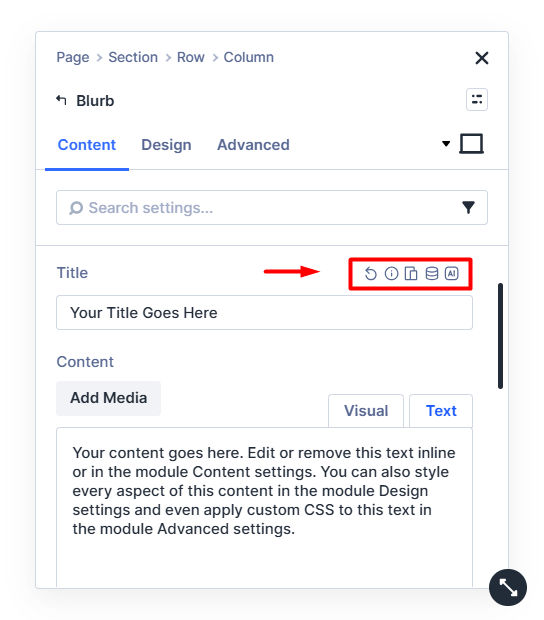
Hide "Edit Responsive Values" and "Generate With AI" Icon

Element Panel Settings – Field More Options Menu Controls
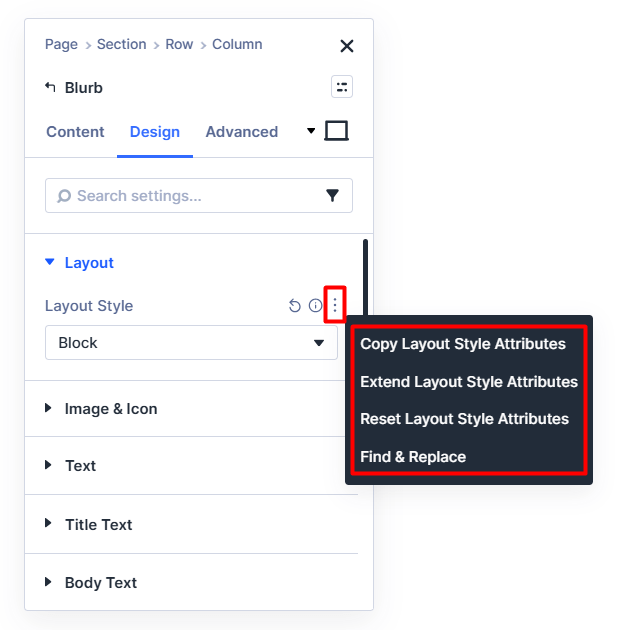
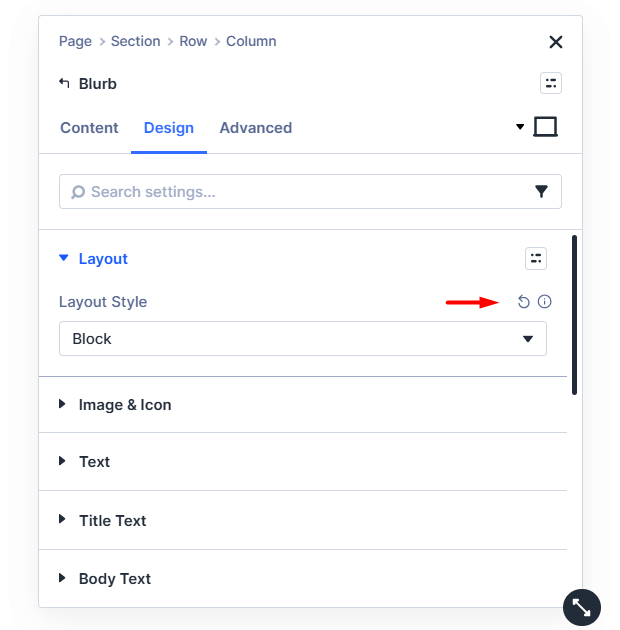
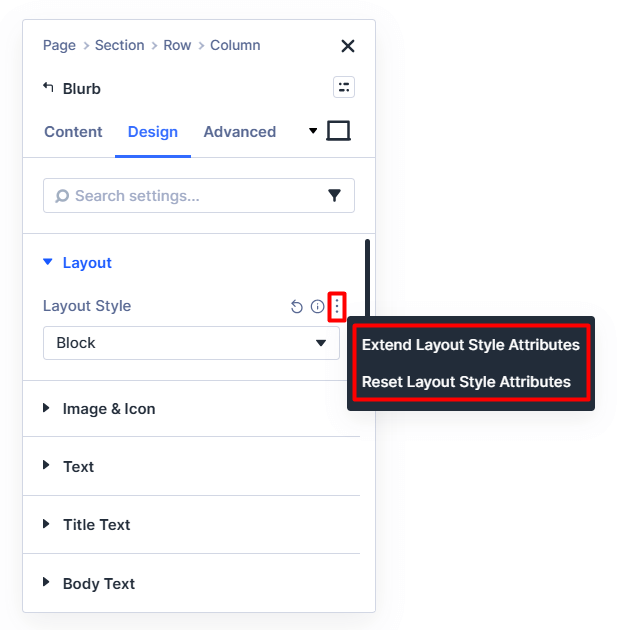
This example demonstrates how you can control the Field More Options menu.
In this demo:
- The default More Options icon (the menu that appears when hovering over a field) is shown.
- The More Options icon is completely hidden, which removes the entire menu and all its options.
- The More Options menu is displayed, but specific actions such as Copy Attributes and Find & Replace are removed.
These settings allow you to restrict advanced field-level actions and simplify the editing interface.
Default Field More Options Menu
More Options Menu Hidden
Specific Menu Options Hidden
Interface Styling – Outline Thickness & Builder Font
This example demonstrates how you can customize the visual appearance of the Divi Builder interface by increasing the outline thickness to 4px when hovering over sections, rows, and modules, and by changing the Divi Builder font to ADLam Display for a more distinctive editing experience.
Default Builder Styling
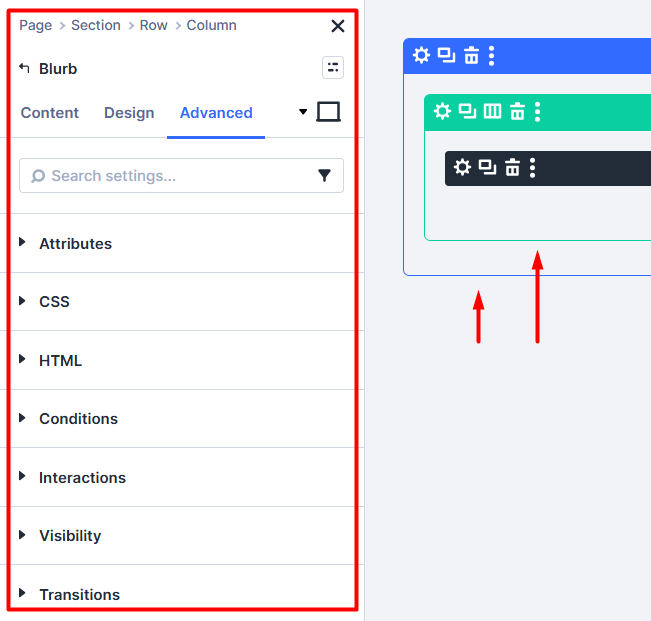
Customized Builder Styling

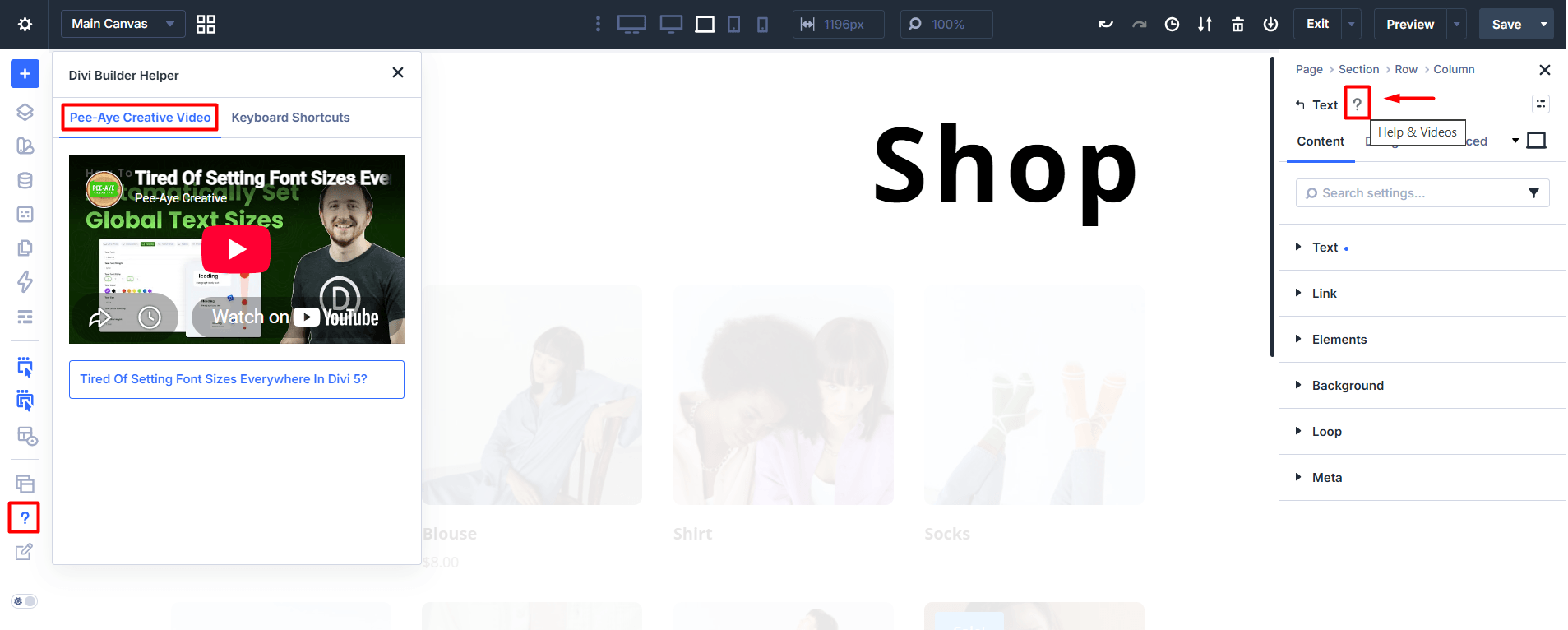
Help Videos – Custom Divi Help Videos with Module Help Button
This example demonstrates how you can add custom Divi help videos with the Module Help button. This allows you to add your own training resources, agency documentation, or workflow specific tutorials, giving users easy access to relevant learning materials directly inside the Divi Builder.
Custom Divi Help Videos
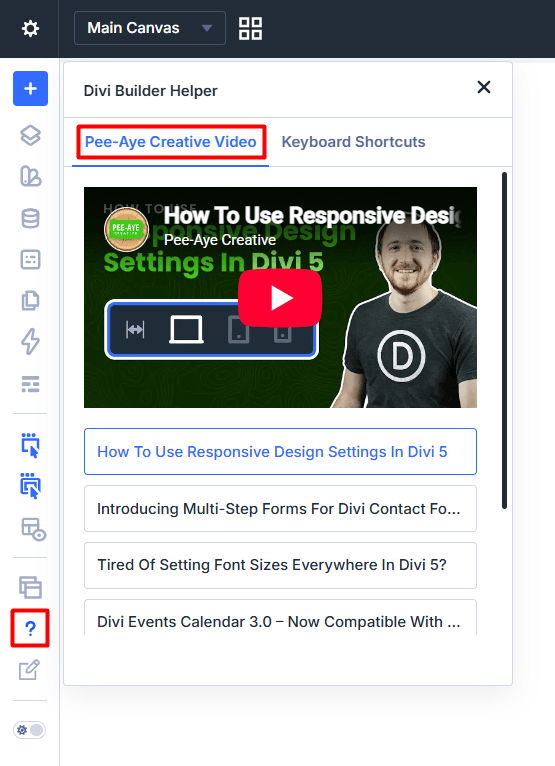
Custom Divi Help Videos with Module Help Button
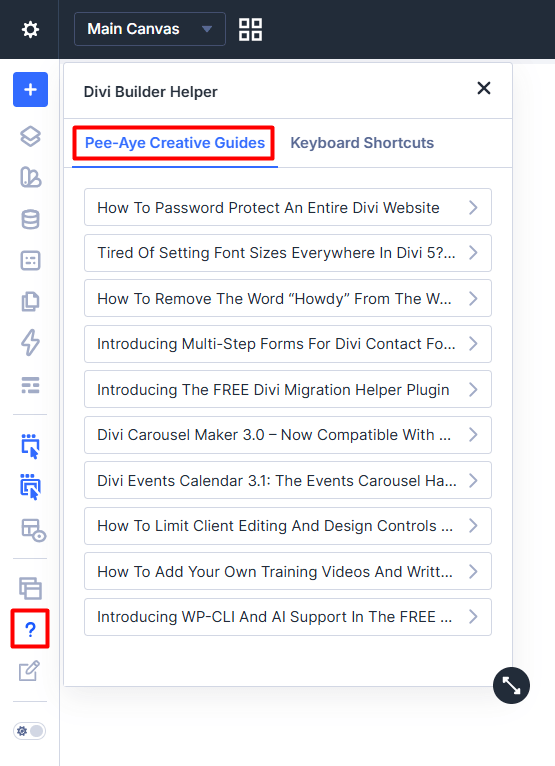
Help – Knowledge Base Guide and Custom Divi Builder Written Guides
This example demonstrates how you can hide the default Divi Knowledge Base Guide and add your own custom written guides inside the Divi Builder. These guides can help users understand workflows, rules, and best practices without needing to watch a video.
Default Divi Knowledge Base
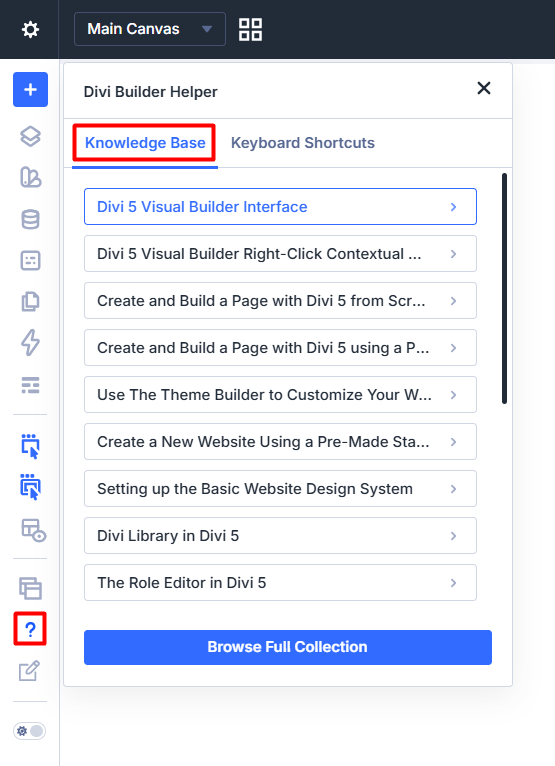
Default Knowledge Base Hidden
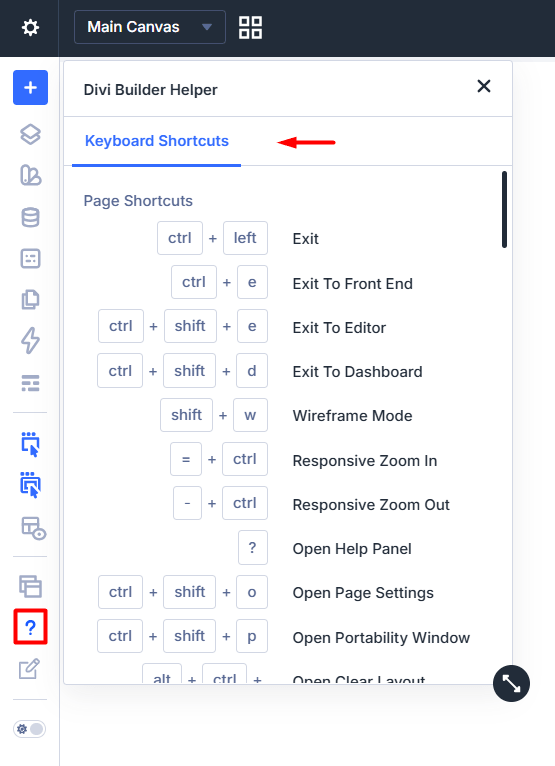
Custom Divi Builder Written Guides
Admin Bar and Dashboard
This example demonstrates how you can control and simplify the WordPress admin bar and dashboard by hiding unnecessary items.
In this demo, options such as the WordPress logo menu, updates icon, comments icon, + New menu, Edit Page/Post, and Edit With Divi are hidden.
Default Admin Bar and Dashboard

Hide Some Options from the Admin Bar and Dashboard

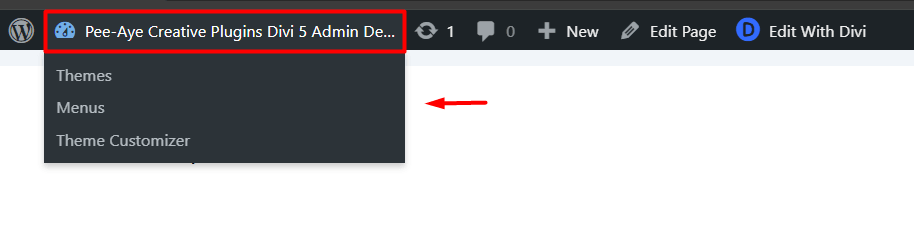
Admin Bar and Dashboard - Site Name Menu
This example demonstrates how you can control the Site Name menu in the admin bar. You can hide the entire menu or keep the site name visible while removing specific dropdown options.
In this demo, the site name is displayed while selected options in the Site Name menu are hidden.
Default Site Name Menu
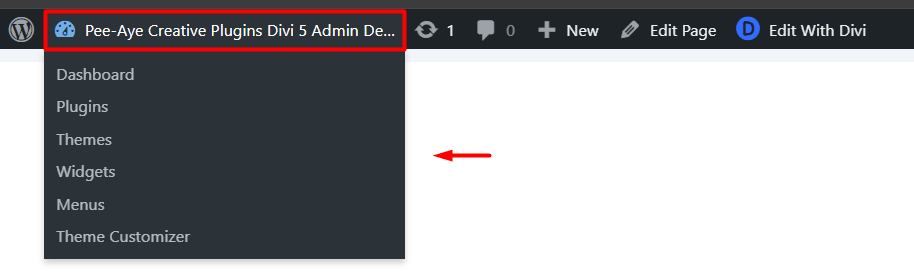
Hide Site Name Menu

Hide Some Options From the Site Name Menu